# Terminaux de Paiements Intégrés (Cluster)
# Terminaux S1F2 Mode Comptoir
[https://scribehow.com/viewer/Setting\_Up\_The\_S1F2\_on\_Counter\_Mode\_\_q9m97rQlSI-09oul8UxN3A](https://scribehow.com/viewer/Setting_Up_The_S1F2_on_Counter_Mode__q9m97rQlSI-09oul8UxN3A)
a completer\*\*
1. The S1F2 terminal is our wireless solution. This terminal can be set up on both counter service and Tableside simultaneously.
Before attempting to setup the S1F2, fully charge the battery. This can take 3-4 hours for the initial charging
2\. On the backside of the terminal, you will see a sticker that notes down the serial number of the terminal. This will be the terminal identifier when reaching out to support.
3\. On the left hand side of the terminal, there is a rubber flap covering the charging port. If not charging on the doc, the terminal can be charged using the USB-C port.
4\. To connect the terminal to the internet, click the settings button in the bottom left corner. You will be brought to a menu where you can select "Network" . Enter the admin pin 1234, and select "Wi-Fi"
5. You'll be brought to a list of networks. Select the network your POS is using, and enter in the password using the on-screen keyboard that appears. The network will appear at the top of the list with "Connected" underneath once properly on the network.
6. Now we need to note down the IP of the terminal. Click on the triangle in the bottom left until you are back in the Terminal Menu. From here select "Device Info" to find the IP.
# Terminaux S1F2 Mode Table
[https://scribehow.com/viewer/Setting\_Up\_The\_S1F2\_on\_Tableside\_\_kz3Yd22jQmukCC-nYS9QWg](https://scribehow.com/viewer/Setting_Up_The_S1F2_on_Tableside__kz3Yd22jQmukCC-nYS9QWg)
# Terminaux V400C Mode Comptoir
[https://scribehow.com/viewer/Setting\_Up\_The\_V400C\_on\_Counter\_Mode\_\_0MXy62DvSoeqlK0mG9iDjg](https://scribehow.com/viewer/Setting_Up_The_V400C_on_Counter_Mode__0MXy62DvSoeqlK0mG9iDjg)
# Moneris DX8000 & PAX A920 - Direct (Counter Integration)
\*Procédure copier du Zoho de Cluster
NOTE: POS must be on 6.10.0.0 minimum for integration to work.
Works with DX8005 also! It has been tested.
Open the Moneris GO App
[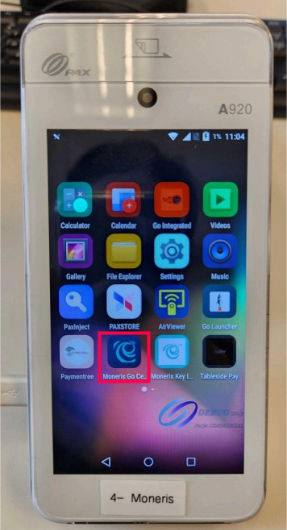](https://wiki.lebeausimon.com/uploads/images/gallery/2026-06/gHTimage.png)
If it's Not there, you can install it from the PAXSTORE
[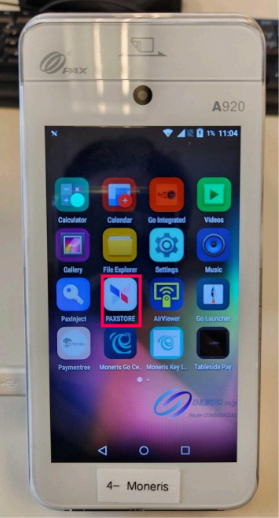](https://wiki.lebeausimon.com/uploads/images/gallery/2026-06/PzAimage.png)
On this page, the client must enter their Moneris Portal Credentials in order to Access General Settings, Tips settings or Standalone mode.
This will be their email and password they set up via the "Let's Get Started" email sent to them by Moneris.
[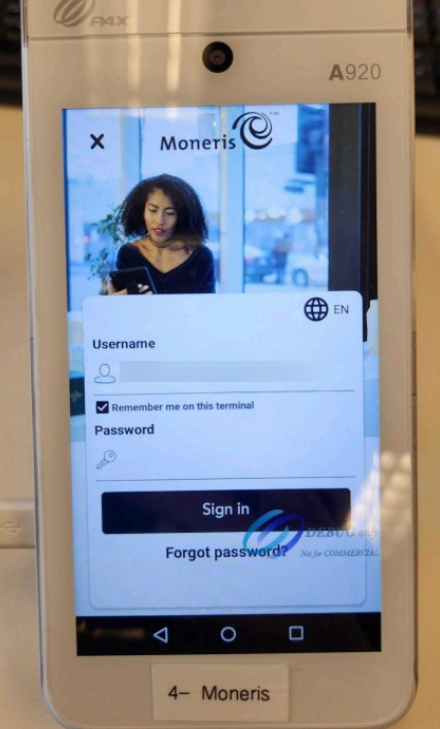](https://wiki.lebeausimon.com/uploads/images/gallery/2026-06/0Otimage.png)
It'll bring you to this Page where they can make payments in Standalone mode, Press the 3 Lines on top left.
[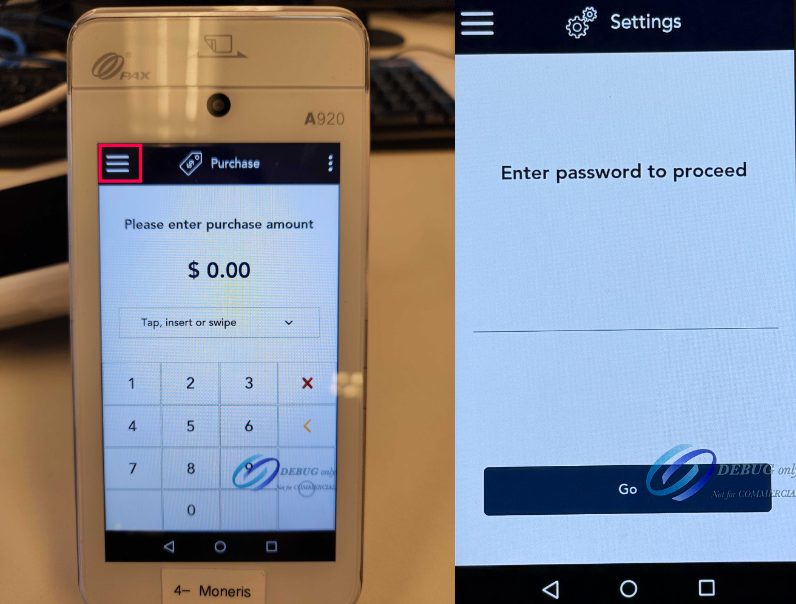](https://wiki.lebeausimon.com/uploads/images/gallery/2026-06/ld2image.png)
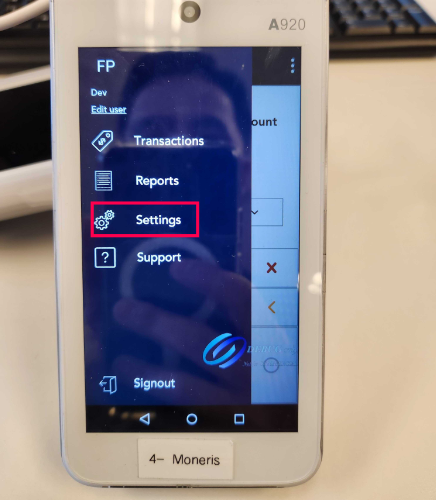
Press Settings
[](https://wiki.lebeausimon.com/uploads/images/gallery/2026-06/XO9image.png)
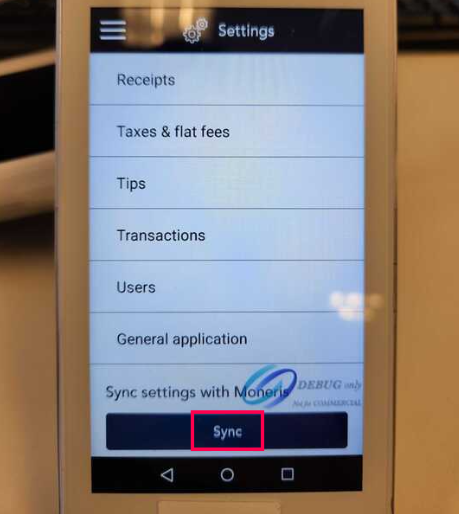
From here, you can setup Receipt, Tips, Tax and many settings.
Press Sync once completed.
[](https://wiki.lebeausimon.com/uploads/images/gallery/2026-06/hMtimage.png)
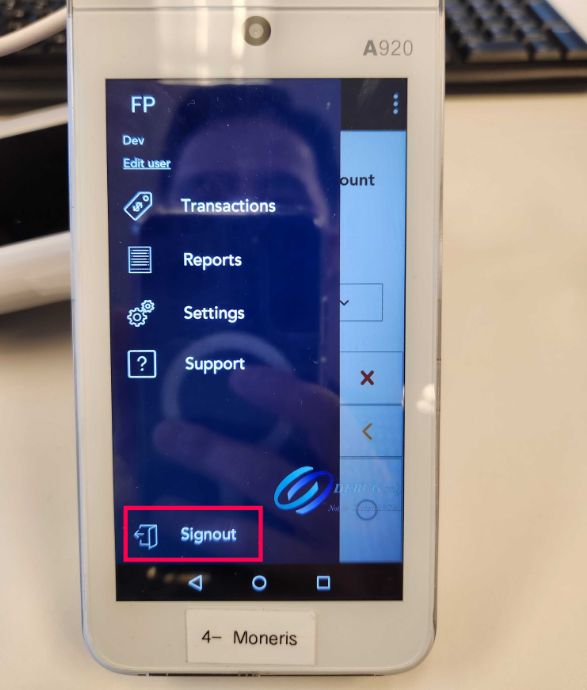
Once done, Sign Out
[](https://wiki.lebeausimon.com/uploads/images/gallery/2026-06/7ZTimage.png)
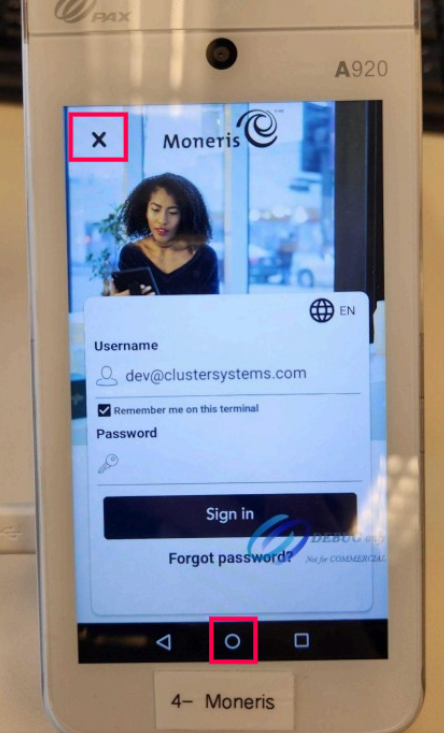
On this screen, press the X. If there's no X, press the Circle Home Button at bottom of screen.
[](https://wiki.lebeausimon.com/uploads/images/gallery/2026-06/eGzimage.png)
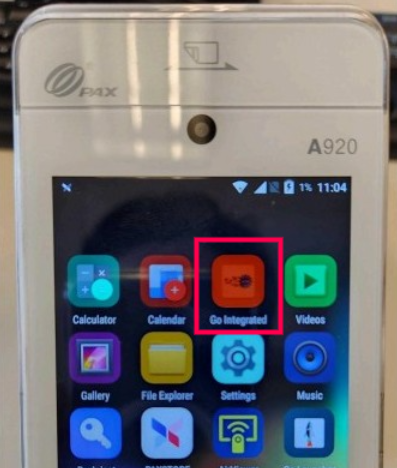
Open the Go Integrated App
[](https://wiki.lebeausimon.com/uploads/images/gallery/2026-06/cwkimage.png)
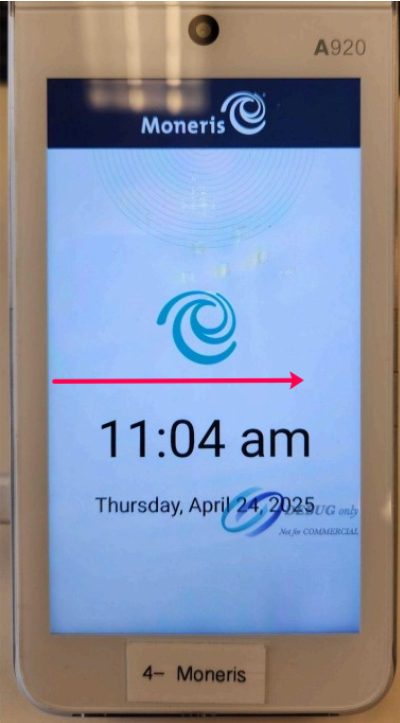
From this screen, swipe from Left to Right in order to access Quick Service Settings
[](https://wiki.lebeausimon.com/uploads/images/gallery/2026-06/IMjimage.png)
Default Password is 212324
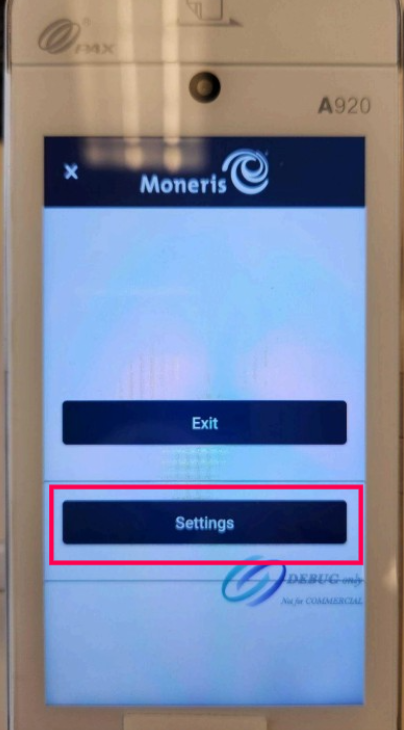
Press Settings
[](https://wiki.lebeausimon.com/uploads/images/gallery/2026-06/kuHimage.png)
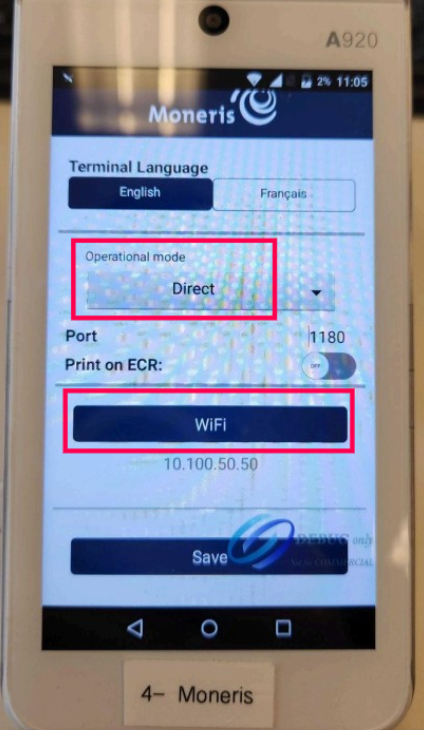
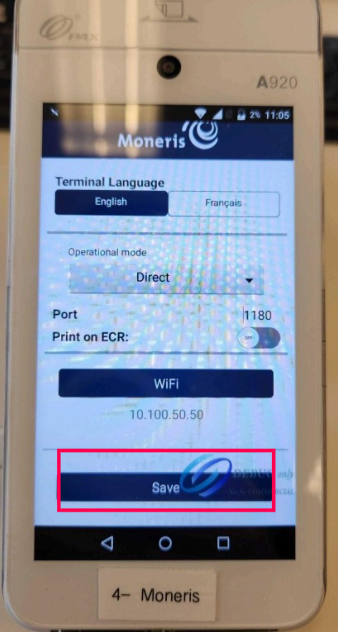
Set Operational Mode to Direct
[](https://wiki.lebeausimon.com/uploads/images/gallery/2026-06/elQimage.png)
Then Press Wifi
Make sure you're Connected to the same Wifi as the POS
[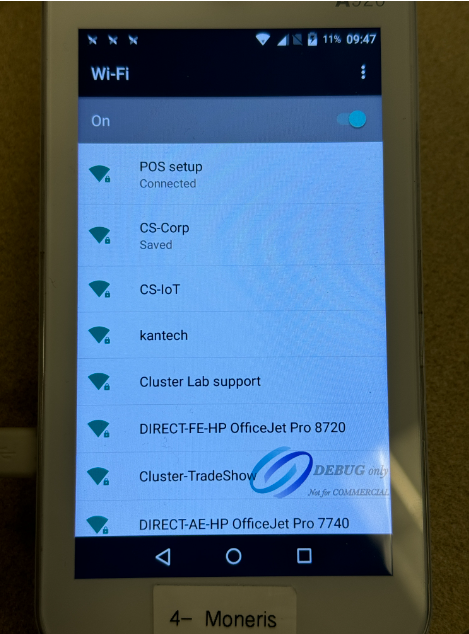](https://wiki.lebeausimon.com/uploads/images/gallery/2026-06/JKRimage.png)
Press and hold on the Wifi Name and tap Modify Network
[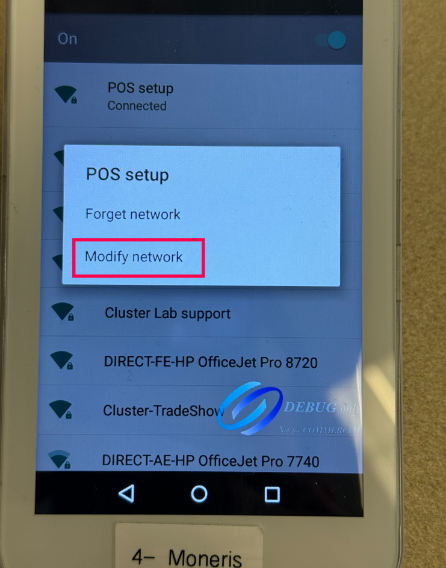](https://wiki.lebeausimon.com/uploads/images/gallery/2026-06/q5Zimage.png)
Check Advanced Settings, Scroll down, and set IP Settings to Static
[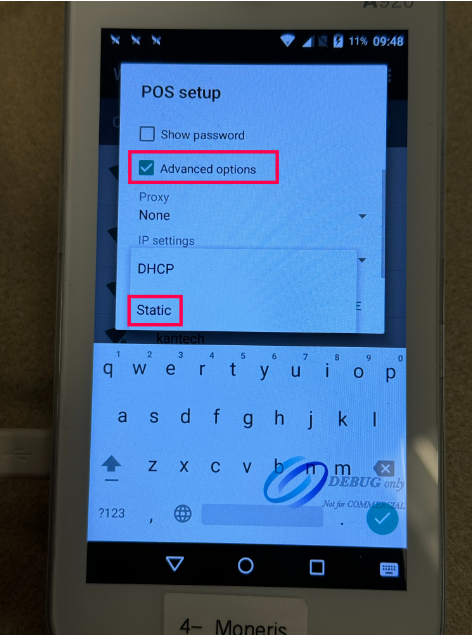](https://wiki.lebeausimon.com/uploads/images/gallery/2026-06/XoZimage.png)
Configure the Terminal's IP, Gateway, DNS, etc
And Save
[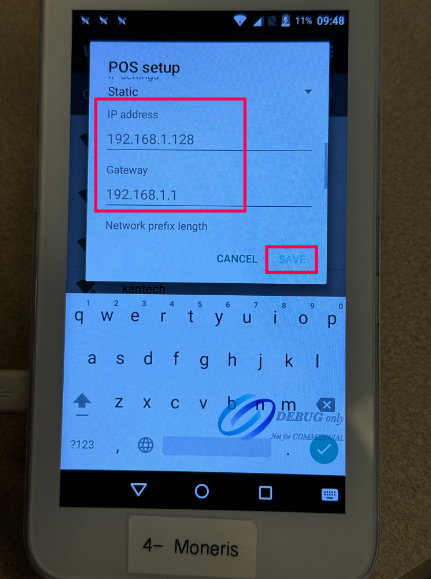](https://wiki.lebeausimon.com/uploads/images/gallery/2026-06/znGimage.png)
If back on this screen, Press Save
[](https://wiki.lebeausimon.com/uploads/images/gallery/2026-06/aeWimage.png)
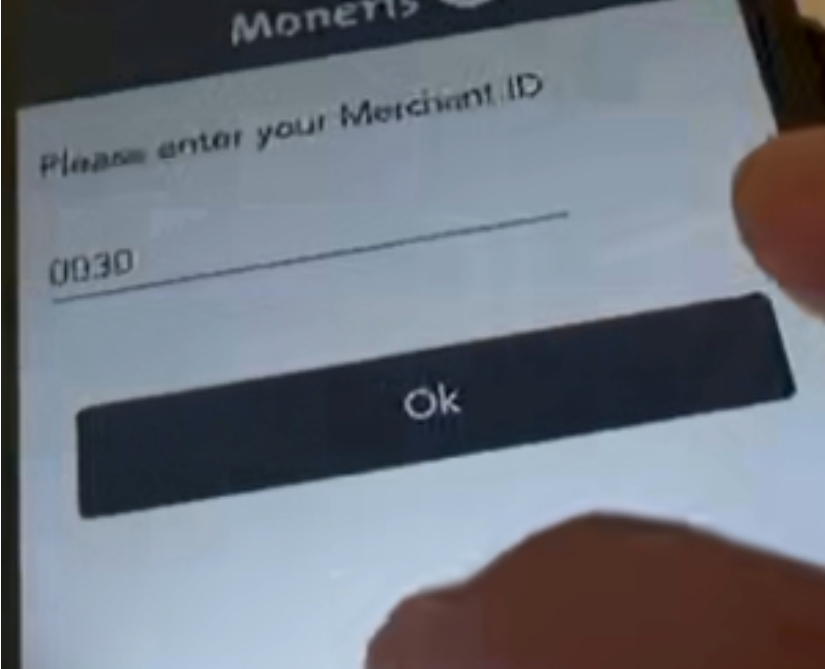
After tapping SAVE, you may see this screen:
[](https://wiki.lebeausimon.com/uploads/images/gallery/2026-06/aMrimage.png)
The client will need to enter their Moneris MID.
If they do not have it, you will need to contact Moneris with the client.
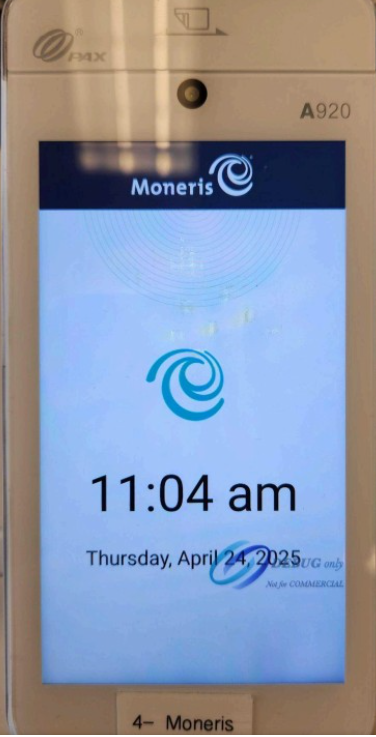
You should be back to the Quick Service Page
[](https://wiki.lebeausimon.com/uploads/images/gallery/2026-06/TgGimage.png)
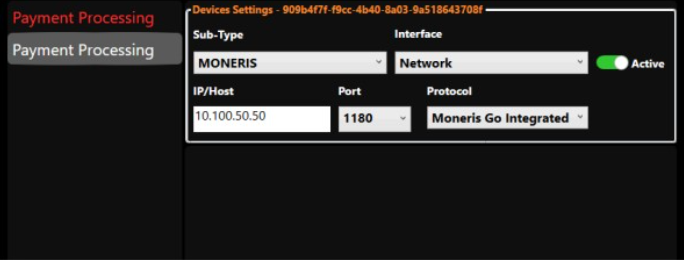
On POS Settings, Device
Set MONERIS Device, Set IP of the Terminal
[](https://wiki.lebeausimon.com/uploads/images/gallery/2026-06/dCtimage.png)
Test by sending a Payment
If POS freezes, reboot and it should be good to go!
# Paymentree - Tip Before Tax
#####
### Sur le PC
1. ##### Fermez l'application PDV en sélectionnant le X blanc sur la page Réglages du PDV.
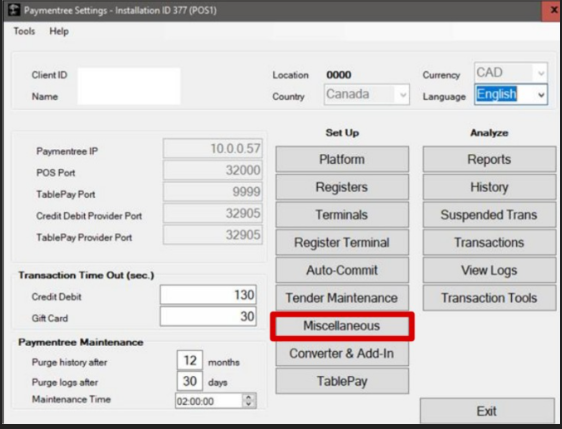
2. ##### Recherchez et ouvrez le fichier de configuration Paymentree dans Windows.
3. ##### Sélectionnez l’option DIVERS (Miscellaneous)
[](https://wiki.lebeausimon.com/uploads/images/gallery/2026-06/vWAimage.png)
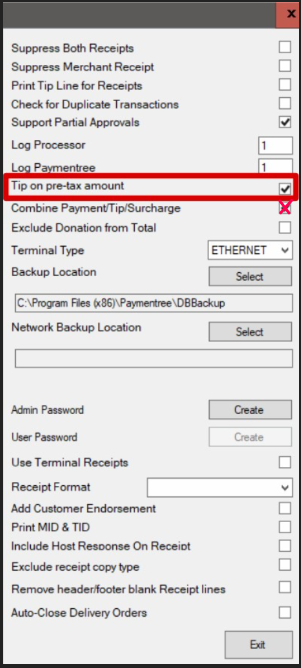
4. ##### Cochez l’option Pourboire sur le montant avant taxes (Tip on pre-tax amount).
##### Decocher "Combine Payment/Tip/Surcharge"
##### Appuyez sur Quitter, puis encore une fois sur Quitter pour sortir de la CONFIGURATION.
[](https://wiki.lebeausimon.com/uploads/images/gallery/2026-06/Nu9image.png)
##### -----
### **Sur le Terminal**
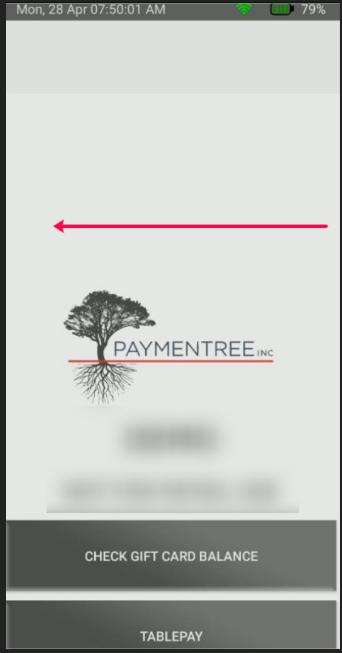
##### Sur l’écran d’accueil de l’application Paymentree sur votre terminal, glissez vers la gauche.
[](https://wiki.lebeausimon.com/uploads/images/gallery/2026-06/zNTimage.png)
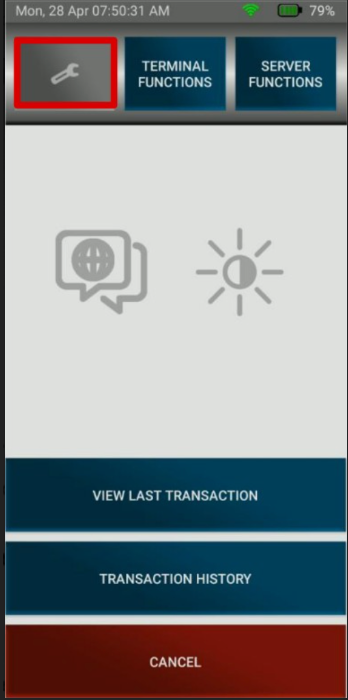
##### Appuyez sur l’icône des Réglages 🔧
[](https://wiki.lebeausimon.com/uploads/images/gallery/2026-06/aQRimage.png)
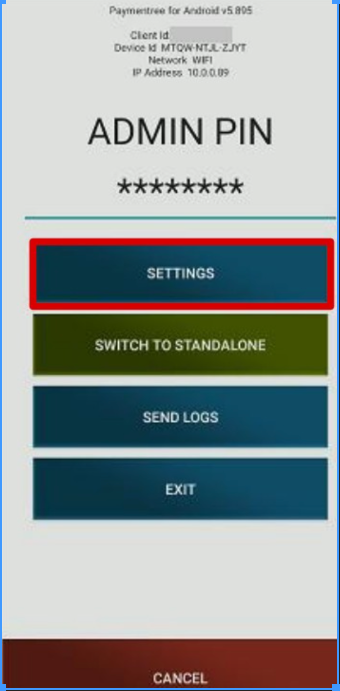
##### Entrez le NIP administrateur et appuyez sur RÉGLAGES (Settings) (Par Default = 9999)
[](https://wiki.lebeausimon.com/uploads/images/gallery/2026-06/98yimage.png)
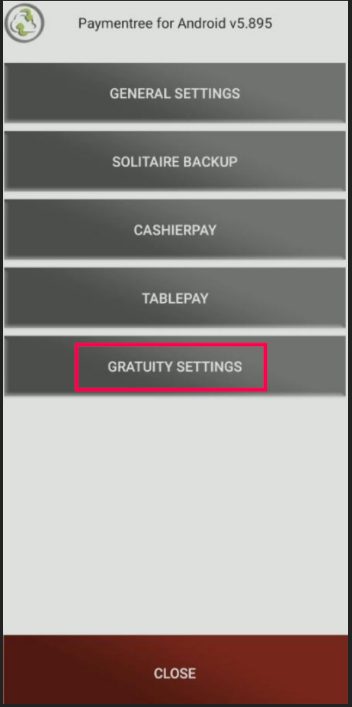
##### Appuyez sur RÉGLAGES DU POURBOIRE (Gratuity Settings)
[](https://wiki.lebeausimon.com/uploads/images/gallery/2026-06/XVFimage.png)
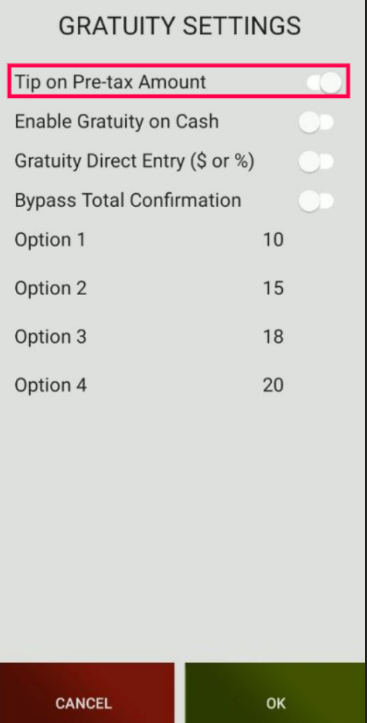
##### Activez l’option Pourboire sur le montant avant taxes (Tip on pre-tax amount) , puis appuyez sur OK pour enregistrer et quitter.
[](https://wiki.lebeausimon.com/uploads/images/gallery/2026-06/1Plimage.png)