# Moneris DX8000 & PAX A920 - Direct (Counter Integration)
\*Procédure copier du Zoho de Cluster
NOTE: POS must be on 6.10.0.0 minimum for integration to work.
Works with DX8005 also! It has been tested.
Open the Moneris GO App
[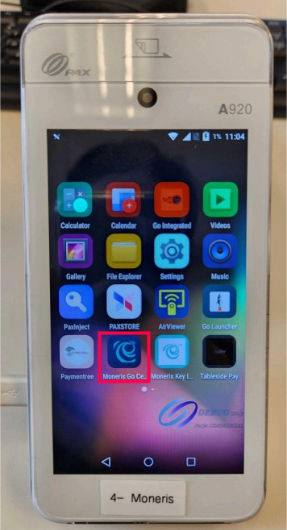](https://wiki.lebeausimon.com/uploads/images/gallery/2026-06/gHTimage.png)
If it's Not there, you can install it from the PAXSTORE
[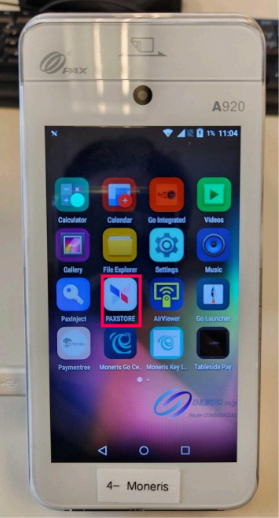](https://wiki.lebeausimon.com/uploads/images/gallery/2026-06/PzAimage.png)
On this page, the client must enter their Moneris Portal Credentials in order to Access General Settings, Tips settings or Standalone mode.
This will be their email and password they set up via the "Let's Get Started" email sent to them by Moneris.
[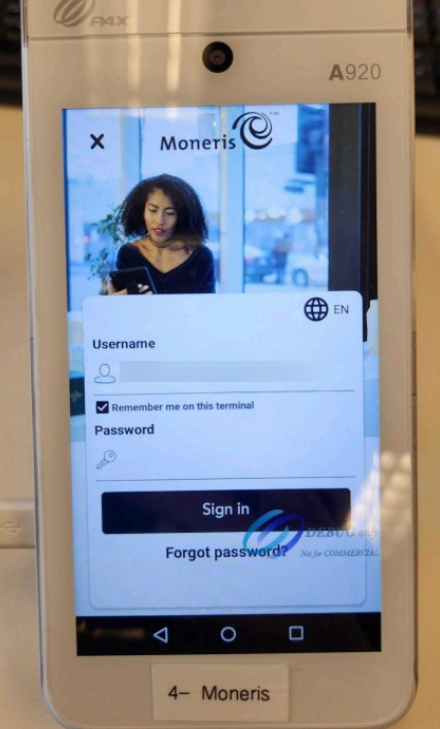](https://wiki.lebeausimon.com/uploads/images/gallery/2026-06/0Otimage.png)
It'll bring you to this Page where they can make payments in Standalone mode, Press the 3 Lines on top left.
[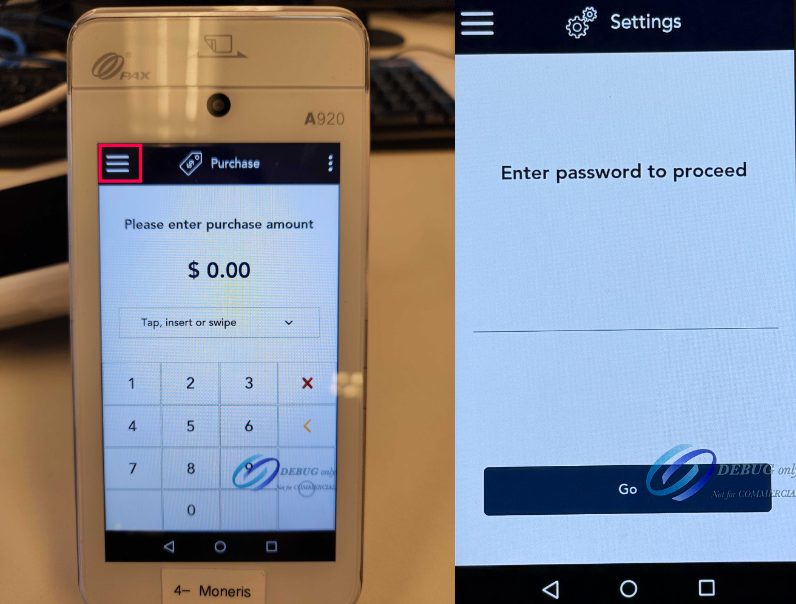](https://wiki.lebeausimon.com/uploads/images/gallery/2026-06/ld2image.png)
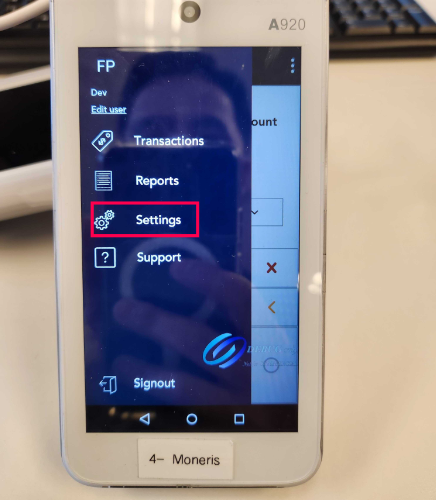
Press Settings
[](https://wiki.lebeausimon.com/uploads/images/gallery/2026-06/XO9image.png)
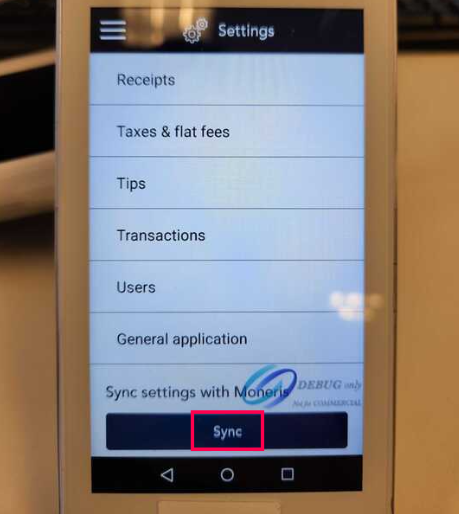
From here, you can setup Receipt, Tips, Tax and many settings.
Press Sync once completed.
[](https://wiki.lebeausimon.com/uploads/images/gallery/2026-06/hMtimage.png)
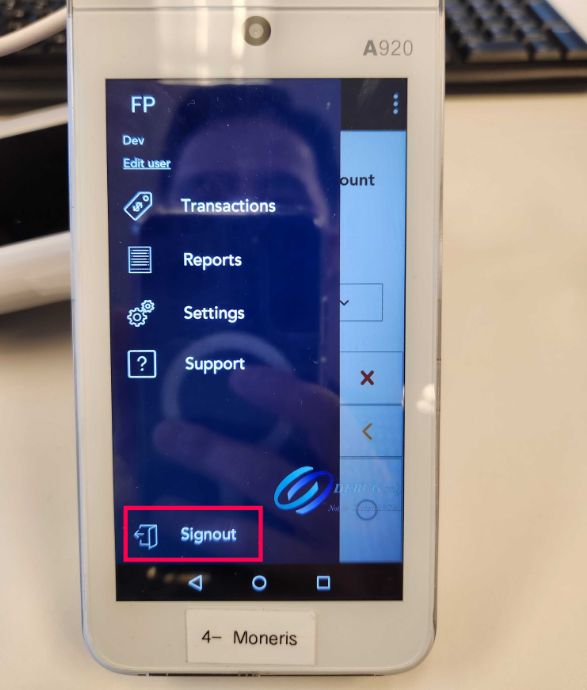
Once done, Sign Out
[](https://wiki.lebeausimon.com/uploads/images/gallery/2026-06/7ZTimage.png)
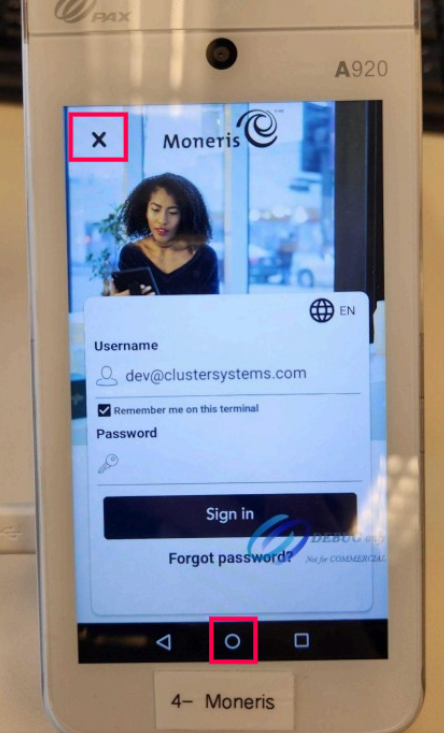
On this screen, press the X. If there's no X, press the Circle Home Button at bottom of screen.
[](https://wiki.lebeausimon.com/uploads/images/gallery/2026-06/eGzimage.png)
Open the Go Integrated App
[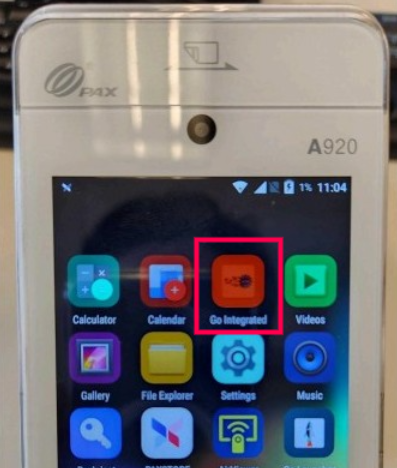](https://wiki.lebeausimon.com/uploads/images/gallery/2026-06/cwkimage.png)
From this screen, swipe from Left to Right in order to access Quick Service Settings
[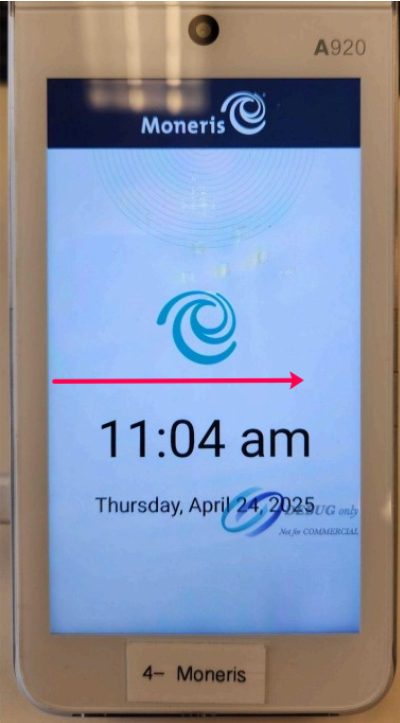](https://wiki.lebeausimon.com/uploads/images/gallery/2026-06/IMjimage.png)
Default Password is 212324
Press Settings
[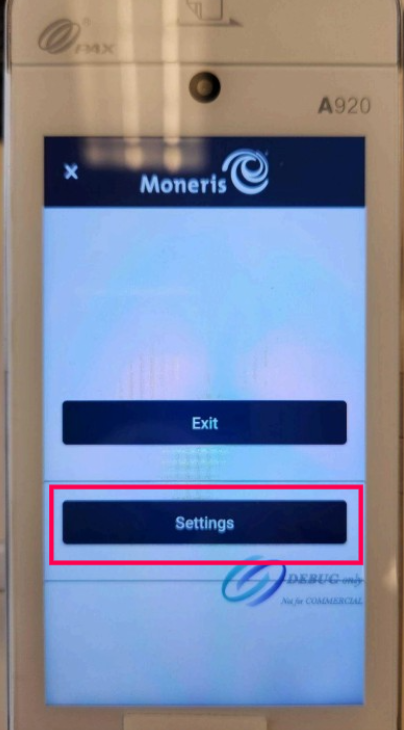](https://wiki.lebeausimon.com/uploads/images/gallery/2026-06/kuHimage.png)
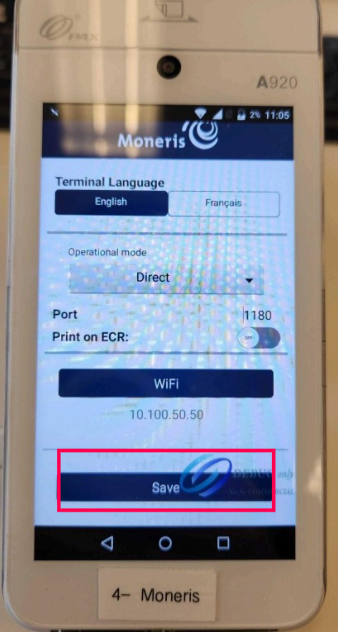
Set Operational Mode to Direct
[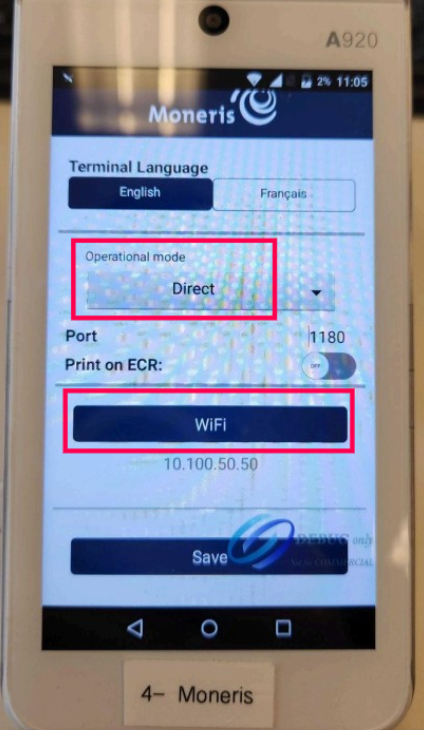](https://wiki.lebeausimon.com/uploads/images/gallery/2026-06/elQimage.png)
Then Press Wifi
Make sure you're Connected to the same Wifi as the POS
[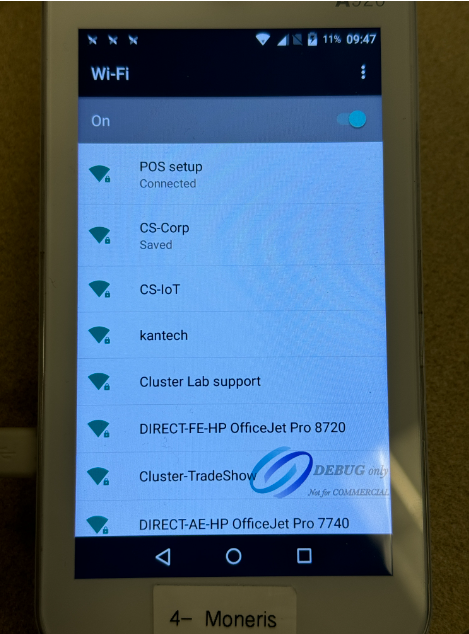](https://wiki.lebeausimon.com/uploads/images/gallery/2026-06/JKRimage.png)
Press and hold on the Wifi Name and tap Modify Network
[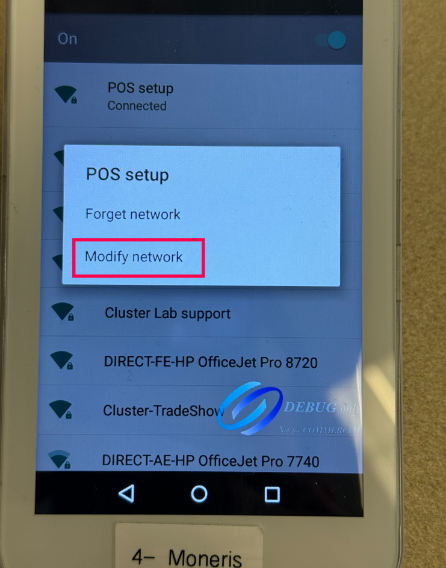](https://wiki.lebeausimon.com/uploads/images/gallery/2026-06/q5Zimage.png)
Check Advanced Settings, Scroll down, and set IP Settings to Static
[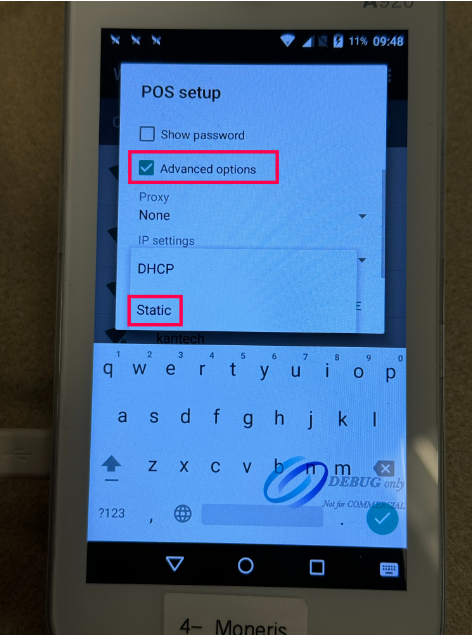](https://wiki.lebeausimon.com/uploads/images/gallery/2026-06/XoZimage.png)
Configure the Terminal's IP, Gateway, DNS, etc
And Save
[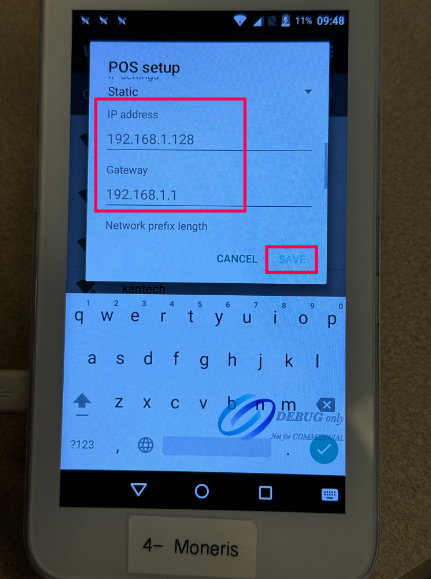](https://wiki.lebeausimon.com/uploads/images/gallery/2026-06/znGimage.png)
If back on this screen, Press Save
[](https://wiki.lebeausimon.com/uploads/images/gallery/2026-06/aeWimage.png)
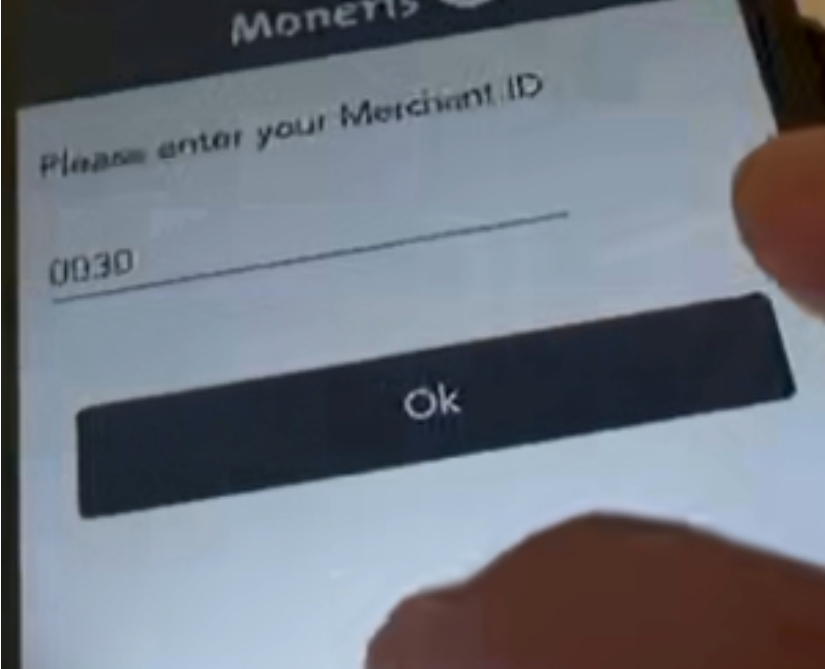
After tapping SAVE, you may see this screen:
[](https://wiki.lebeausimon.com/uploads/images/gallery/2026-06/aMrimage.png)
The client will need to enter their Moneris MID.
If they do not have it, you will need to contact Moneris with the client.
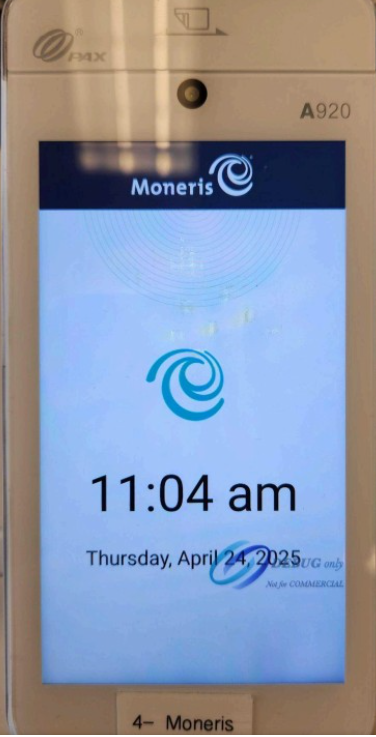
You should be back to the Quick Service Page
[](https://wiki.lebeausimon.com/uploads/images/gallery/2026-06/TgGimage.png)
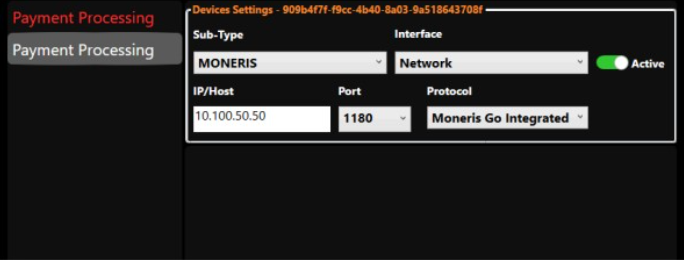
On POS Settings, Device
Set MONERIS Device, Set IP of the Terminal
[](https://wiki.lebeausimon.com/uploads/images/gallery/2026-06/dCtimage.png)
Test by sending a Payment
If POS freezes, reboot and it should be good to go!