# Unifi Access
# Français
# Unifi Acces - Creation Utilisateur/Resident Long-Terme
#### Connexion
1. Connectez-vous à votre compte sur **unifi.ui.com**.
2. Naviguez vers la section **Access** de votre contrôleur.
---
#### Ajouter un utilisateur
*Employés, résidents long terme, et toute personne nécessitant un accès aux portes via son téléphone.*
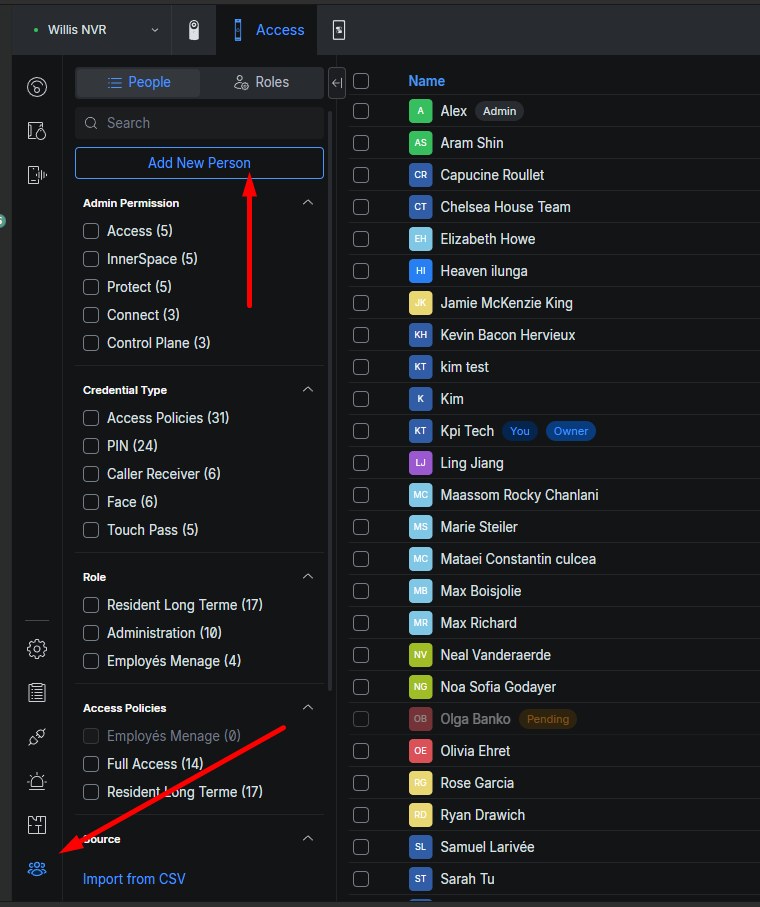
1. Allez dans la section **People**.
2. Cliquez sur **Add** pour créer une nouvelle personne. *(photo)*
3. Entrez les informations :
- **Courriel** (requis seulement si vous voulez un accès par téléphone)
- **Nom** et **prénom**
**[](https://wiki.lebeausimon.com/uploads/images/gallery/2026-08/KAVimage.png)**
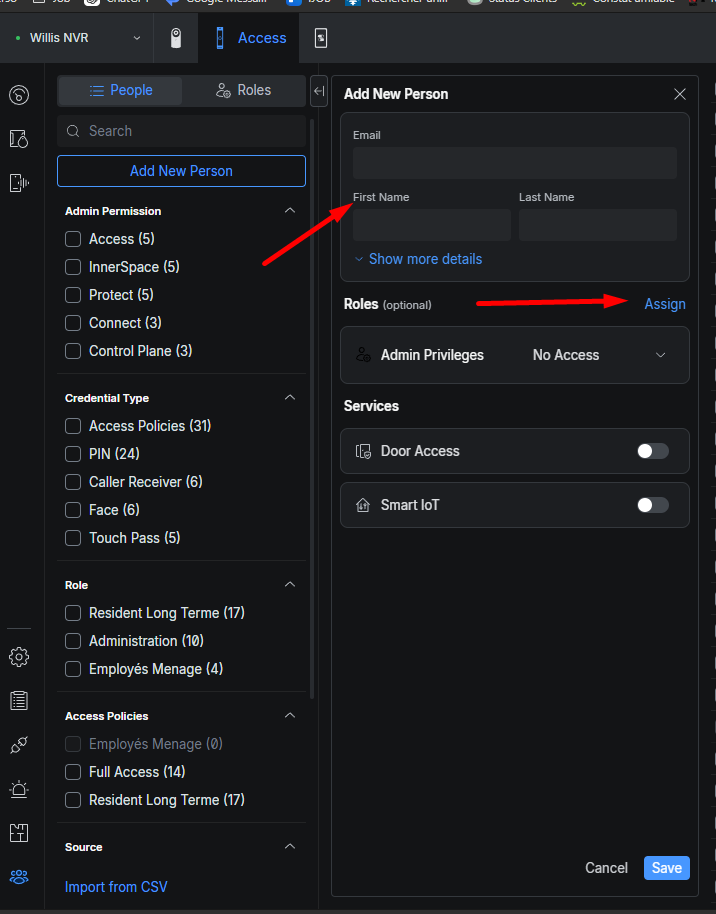
1. Vis-à-vis **Role**, cliquez sur **Assign** et sélectionnez le rôle correspondant à l'utilisateur. *(photo)*
- Les rôles définissent les autorisations pour les portes (qui peut ouvrir quoi).
- Les rôles sont modifiables sous l'onglet **Roles** au besoin.
[](https://wiki.lebeausimon.com/uploads/images/gallery/2026-08/ihmimage.png)
**Attribuer une méthode d'entrée :**
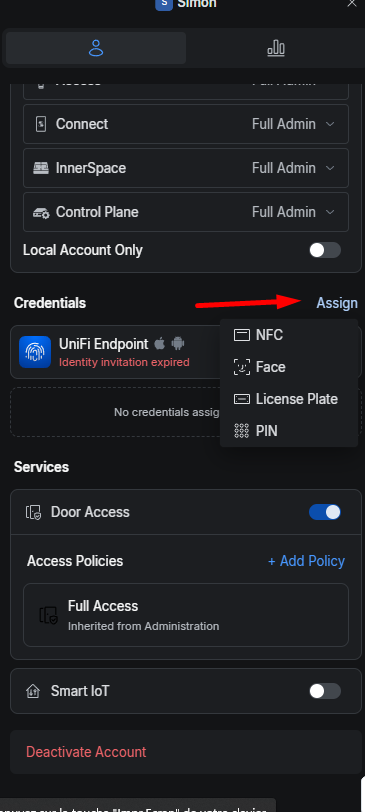
5. Cliquez sur l'utilisateur voulu, puis sous la section **Credentials**, cliquez sur **Assign**.
6. Choisissez la méthode d'entrée — par exemple un **PIN** (code à 4 chiffres). *(photo)*
7. Vis-à-vis **UniFi Endpoint**, cliquez sur **Send** pour envoyer une invitation au courriel de l'utilisateur.
- L'utilisateur devra télécharger l'application **UniFi Endpoint**.
- Il pourra ensuite appuyer sur le bouton reçu dans le courriel pour activer son accès.
[](https://wiki.lebeausimon.com/uploads/images/gallery/2026-08/79Vimage.png)
---
# Unifi Access - Ajouter un visiteur / résident temporaire
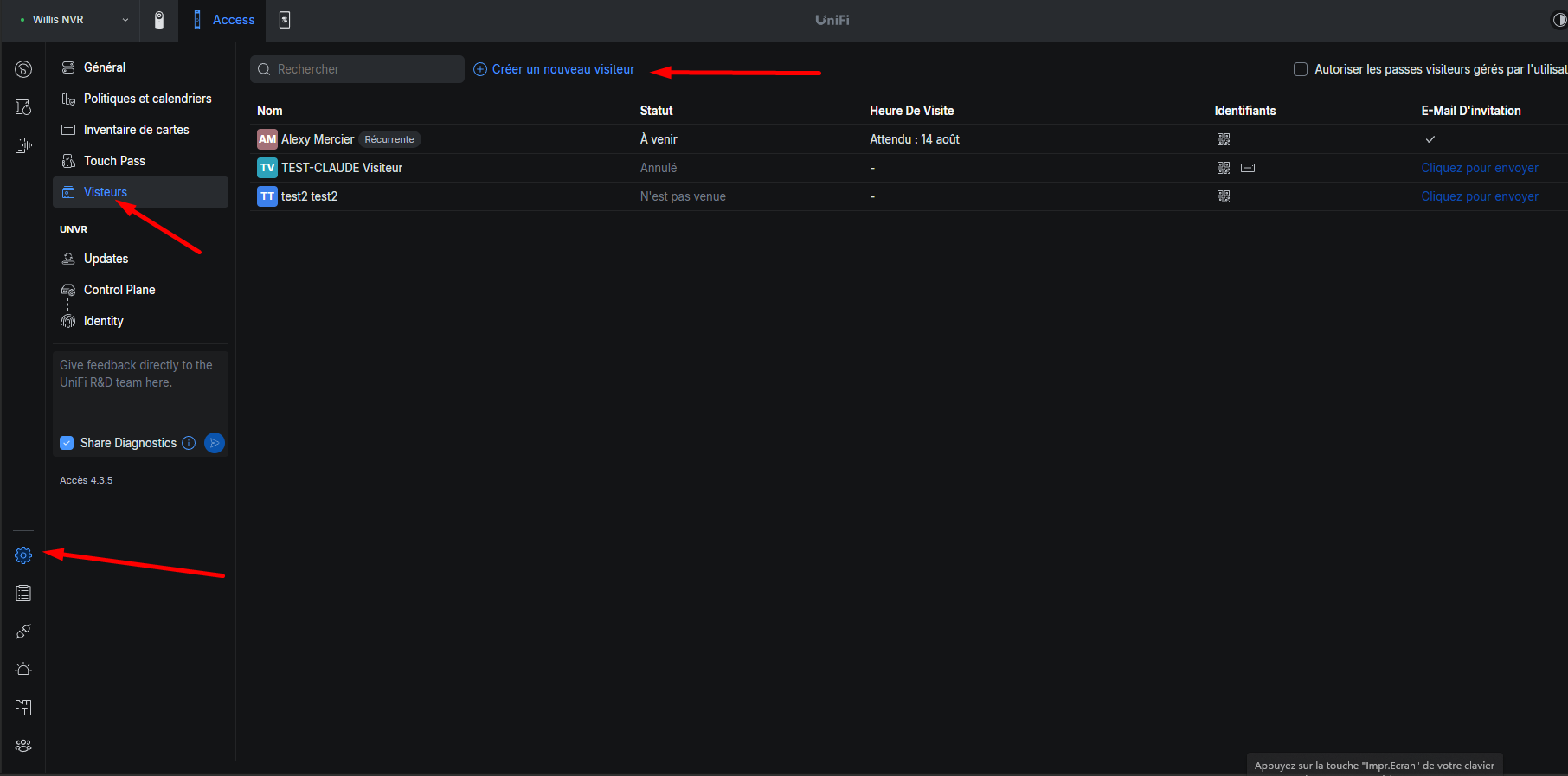
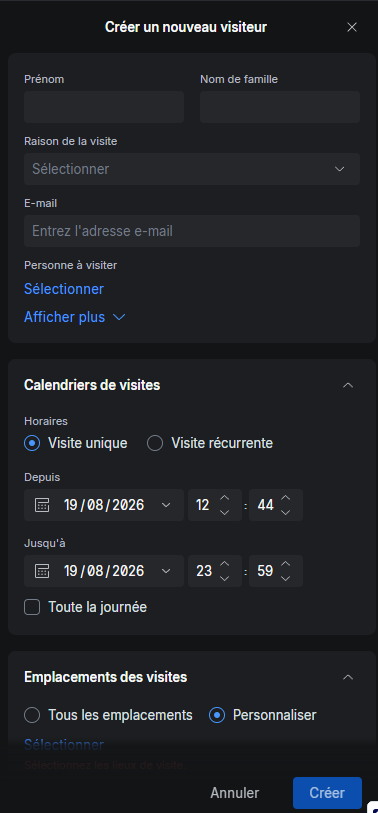
1. Allez dans **Settings → Visitors** et cliquez sur **Create New Visitor**.
2. Ajoutez les informations voulues.
3. Choisissez les **dates de validité** de l'accès.
4. Choisissez les **portes** auxquelles le visiteur a accès.
5. Choisissez la **méthode d'authentification** : NIP, code QR, etc.
[](https://wiki.lebeausimon.com/uploads/images/gallery/2026-08/2V6image.png)
[](https://wiki.lebeausimon.com/uploads/images/gallery/2026-08/y6Nimage.png)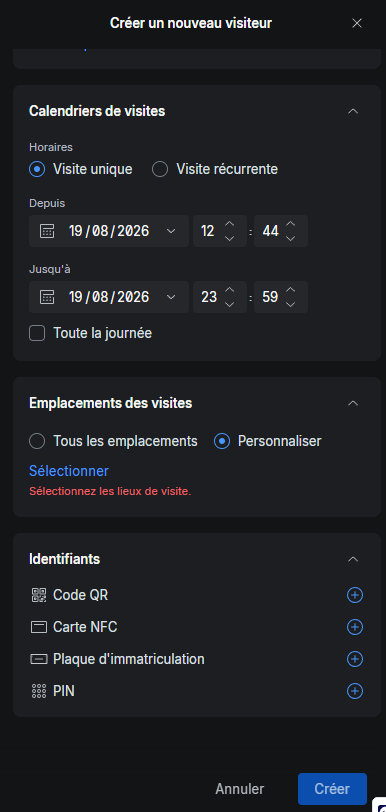
# Unifi access - Recevoir les appels de l'interphone sur son téléphone
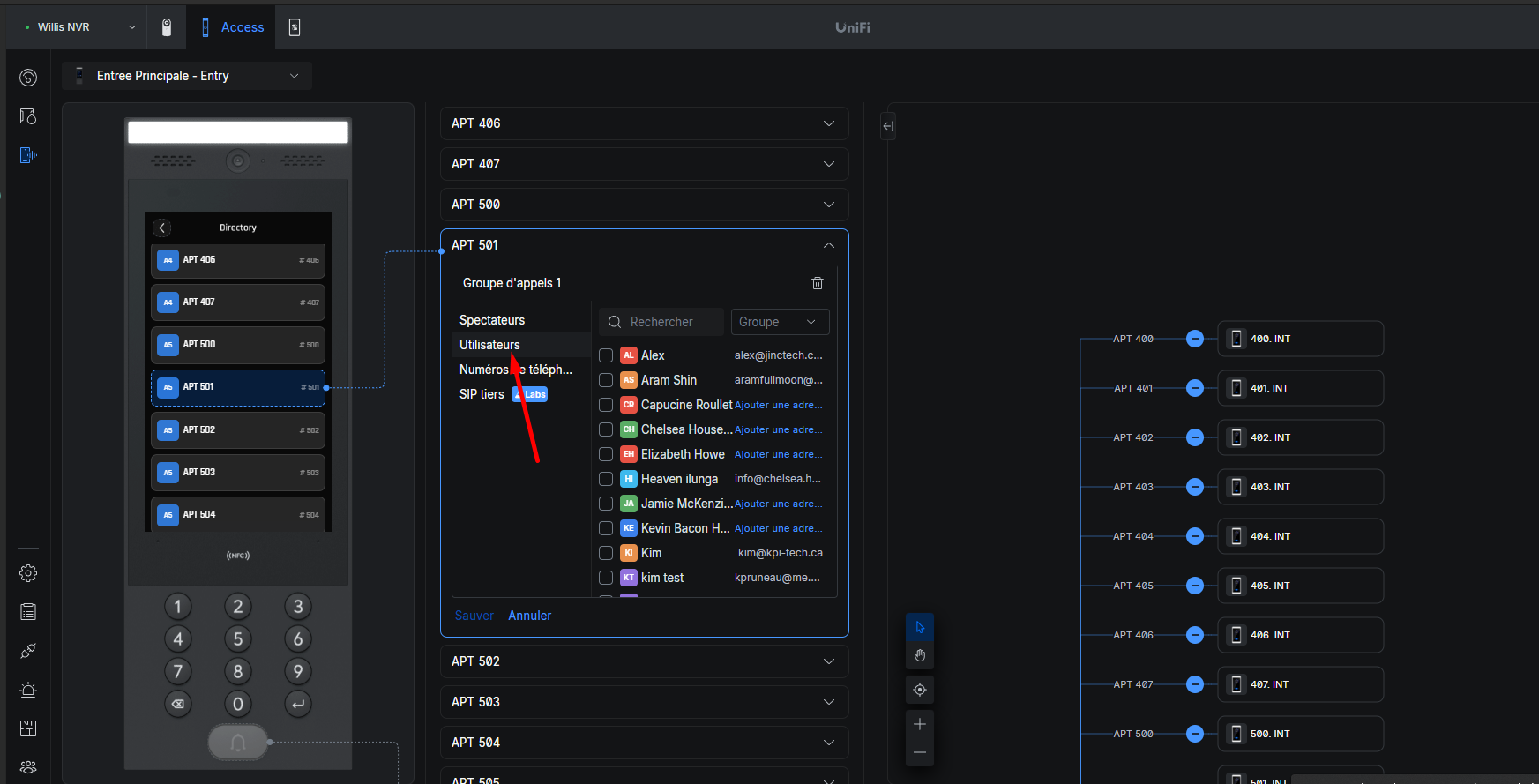
*Permet à l'utilisateur de recevoir une notification sur son téléphone lorsque quelqu'un compose le numéro de l'appartement sur l'interphone de la porte d'entrée principale.*
**Prérequis :** l'utilisateur doit avoir l'application installée et configurée (voir la section [*Ajouter un utilisateur*](https://wiki.lebeausimon.com/books/unifi-access/page/unifi-acces-creation-utilisateurresident-long-terme "Unifi Acces - Creation Utilisateur")).
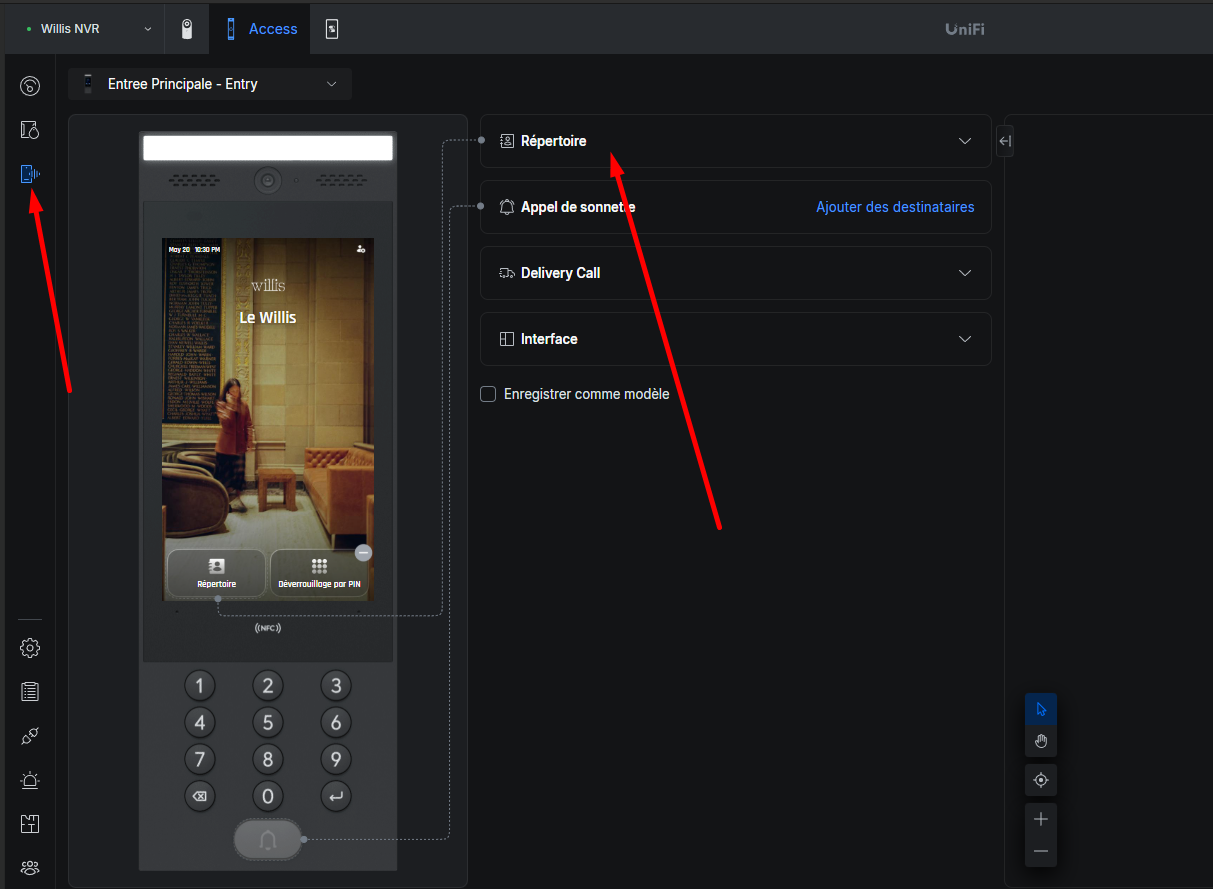
1. Sur la plateforme, allez dans l'onglet **Interface**.
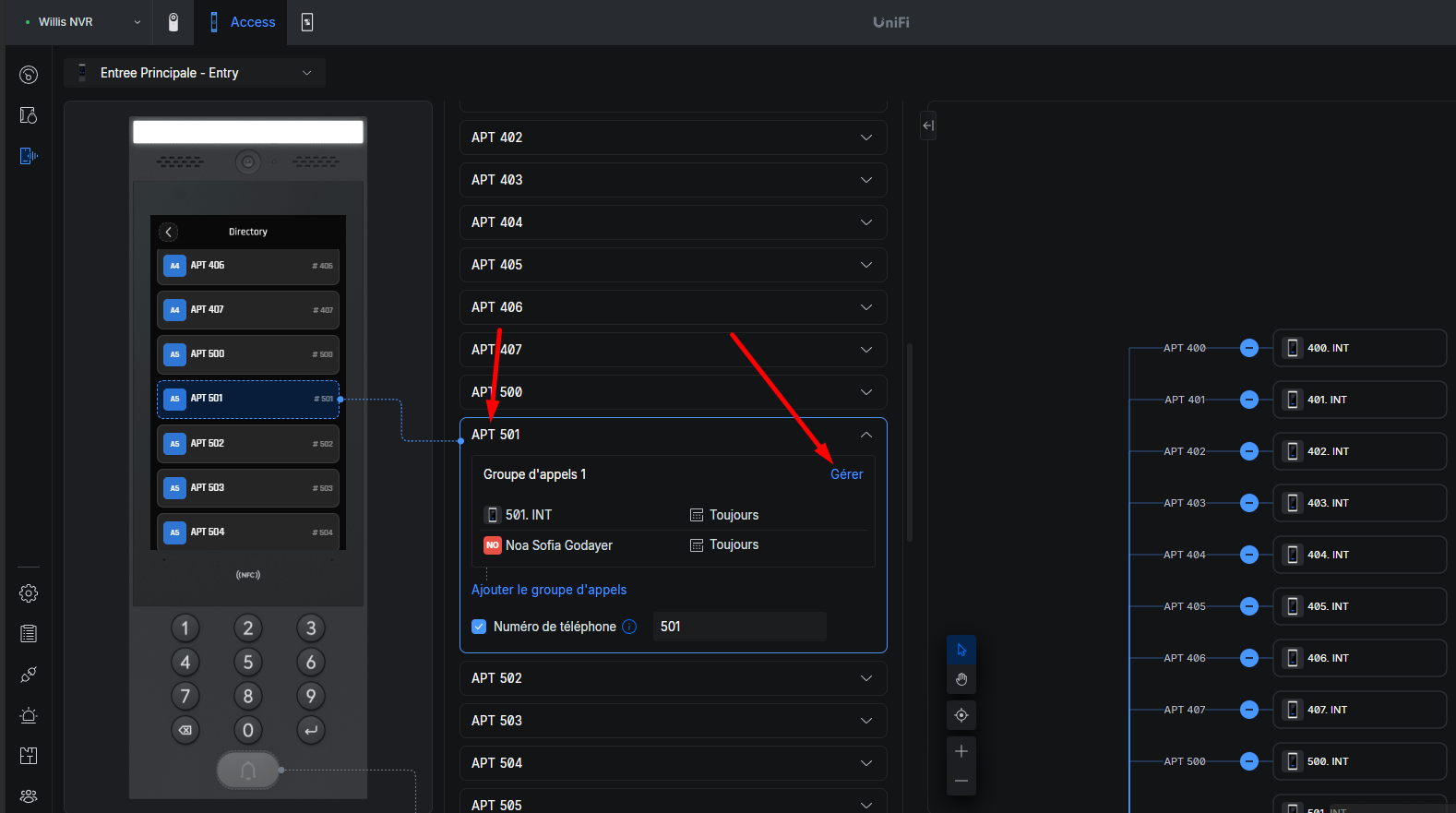
2. Cliquez sur **Répertoire** (Directory) et choisissez l'appartement voulu.
3. Cliquez sur **Gérer** (Manage), puis sur **Utilisateurs** (Users).
4. Ajoutez l'utilisateur qui doit recevoir la notification lorsque l'appartement est appelé.
[](https://wiki.lebeausimon.com/uploads/images/gallery/2026-08/5cKimage.png)
[](https://wiki.lebeausimon.com/uploads/images/gallery/2026-08/Aldimage.png)
[](https://wiki.lebeausimon.com/uploads/images/gallery/2026-08/hquimage.png)
# English
# Unifi Access - Create Users / Long-Term
#### Login
1. Log in to your account at **unifi.ui.com**.
2. Navigate to the **Access** section of your controller.
---
#### Adding a Permanent / Long-Term User
*Employees, long-term residents, and anyone requiring door access via their phone.*
1. Go to the **People** section.
2. Click **Add** to create a new person. *(photo)*
3. Enter the information:
- **Email** (required only if you want phone access)
- **First name** and **last name**
**[](https://wiki.lebeausimon.com/uploads/images/gallery/2026-08/KAVimage.png)**
4\. Next to **Role**, click **Assign** and select the role that matches the user.
- - Roles define door permissions (who can open what).
- Roles can be edited under the **Roles** tab if needed.
[](https://wiki.lebeausimon.com/uploads/images/gallery/2026-08/ihmimage.png)
**Assigning an entry method:**
5. Click on the desired user, then under the **Credentials** section, click **Assign**.
6. Choose the entry method — for example, a **PIN** (4-digit code).
\*\*Only if you want the user to have access whit their phone
- Next to **UniFi Endpoint**, click **Send** to send an invitation to the user's email.
- - The user will need to download the **UniFi Endpoint** app.
- They can then tap the button received in the email to activate their access.
[](https://wiki.lebeausimon.com/uploads/images/gallery/2026-08/79Vimage.png)
---
#### Adding a Visitor or Temporary Resident
1. Go to **Settings → Visitors** and click **Create New Visitor**.
2. Add the desired information.
3. Choose the **validity dates** for the access.
4. Choose the **doors** the visitor can access.
5. Choose the **authentication method**: PIN, QR code, etc.
[](https://wiki.lebeausimon.com/uploads/images/gallery/2026-08/2V6image.png)
[](https://wiki.lebeausimon.com/uploads/images/gallery/2026-08/y6Nimage.png)
# Unifi Access - Adding a Visitor or Temporary Resident
1. Go to **Settings → Visitors** and click **Create New Visitor**.
2. Add the desired information.
3. Choose the **validity dates** for the access.
4. Choose the **doors** the visitor can access.
5. Choose the **authentication method**: PIN, QR code, etc.
[](https://wiki.lebeausimon.com/uploads/images/gallery/2026-08/2V6image.png)
[](https://wiki.lebeausimon.com/uploads/images/gallery/2026-08/y6Nimage.png)
# Unifi access - Receiving Intercom Calls on Your Phone
*Allows the user to receive a notification on their phone when someone dials the apartment number on the intercom at the main entrance door.*
**Prerequisite:** the user must have the app installed and configured (see the *Adding a User* section).
1. On the platform, go to the **Interface** tab.
2. Click **Directory**, then select the desired apartment.
3. Click **Manage**, then **Users**.
4. Add the user who should receive the notification when the apartment is called.
[](https://wiki.lebeausimon.com/uploads/images/gallery/2026-08/5cKimage.png)
[](https://wiki.lebeausimon.com/uploads/images/gallery/2026-08/Aldimage.png)
[](https://wiki.lebeausimon.com/uploads/images/gallery/2026-08/hquimage.png)
# Willis
# Unifi Access - Create Users / Long-Term
#### Login
1. Log in to your account at **unifi.ui.com**.
2. Navigate to the **Access** section of your controller.
---
#### Adding a Permanent / Long-Term User
*Employees, long-term residents, and anyone requiring door access via their phone.*
1. Go to the **People** section.
2. Click **Add** to create a new person. *(photo)*
3. Enter the information:
- **Email** (required only if you want phone access)
- **First name** and **last name**
**[](https://wiki.lebeausimon.com/uploads/images/gallery/2026-08/KAVimage.png)**
4\. Next to **Role**, click **Assign** and select the role that matches the user.
- - Roles define door permissions (who can open what).
- Roles can be edited
- **Employés Menage**
- All Door
- **Entree Principale**
- Main front door
- **Resident Long terme**
- Salle commune 3e
- Salle commune 4e
- Salle commune 5e
- Salle commune 6e
- Salle commune 7e
- Salle commune 8e
- Main front door
- **Administration**
- All door
[](https://wiki.lebeausimon.com/uploads/images/gallery/2026-08/ihmimage.png)
**Assigning an entry method:**
5. Click on the desired user, then under the **Credentials** section, click **Assign**.
6. Choose the entry method — for example, a **PIN** (4-digit code).
[](https://wiki.lebeausimon.com/uploads/images/gallery/2026-08/79Vimage.png)
\*\*Only if you want the user to have access with their phone
- Next to **UniFi Endpoint**, click **Send** to send an invitation to the user's email.
- - The user will need to download the **UniFi Endpoint** app.
- They can then tap the button received in the email to activate their access.
---
#### Adding a Visitor or Temporary Resident
1. Go to **Settings → Visitors** and click **Create New Visitor**.
2. Add the desired information.
3. Choose the **validity dates** for the access.
4. Choose the **doors** the visitor can access.
5. Choose the **authentication method**: PIN, QR code, etc.
[](https://wiki.lebeausimon.com/uploads/images/gallery/2026-08/2V6image.png)
[](https://wiki.lebeausimon.com/uploads/images/gallery/2026-08/y6Nimage.png)