
Unifi Access - Create Users / Long-Term
Login
- Log in to your account at unifi.ui.com.
- Navigate to the Access section of your controller.
Adding a Permanent / Long-Term User
Employees, long-term residents, and anyone requiring door access via their phone.
- Go to the People section.
- Click Add to create a new person. (photo)
- Enter the information:
- Email (required only if you want phone access)
- First name and last name
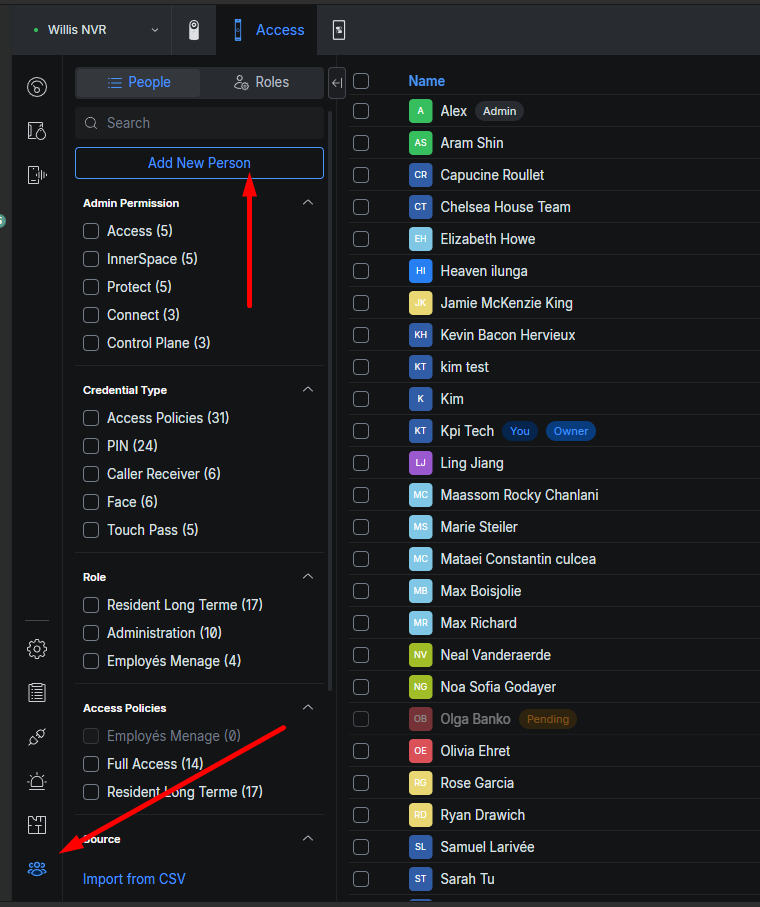
4. Next to Role, click Assign and select the role that matches the user.
-
- Roles define door permissions (who can open what).
- Roles can be edited
- Employés Menage
- All Door
- Entree Principale
- Main front door
- Main front door
- Resident Long terme
- Salle commune 3e
- Salle commune 4e
- Salle commune 5e
- Salle commune 6e
- Salle commune 7e
- Salle commune 8e
- Main front door
- Administration
- All door
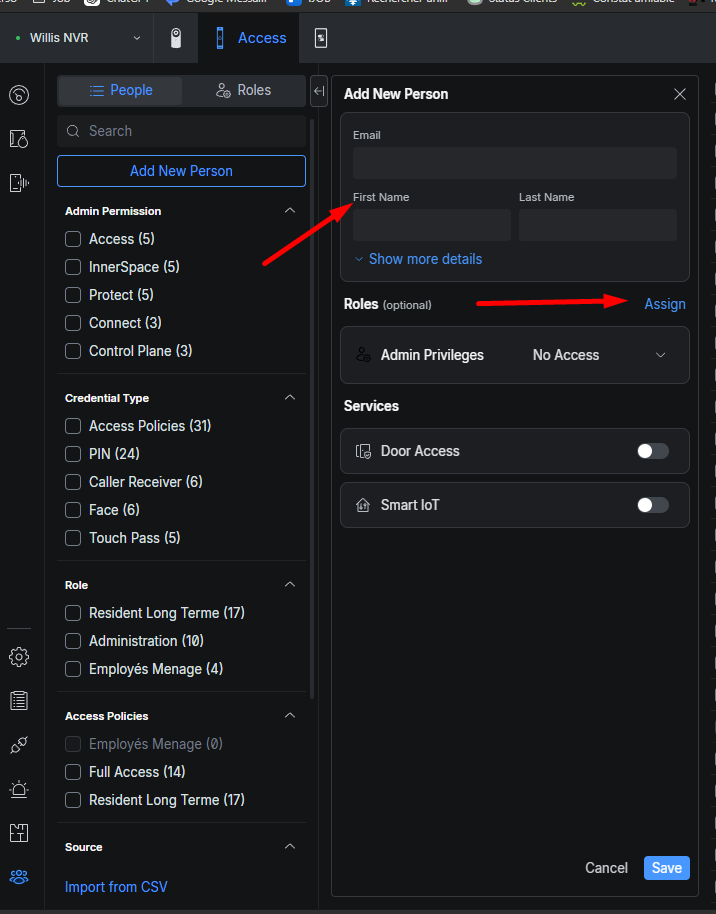
Assigning an entry method:
- Click on the desired user, then under the Credentials section, click Assign.
- Choose the entry method — for example, a PIN (4-digit code).
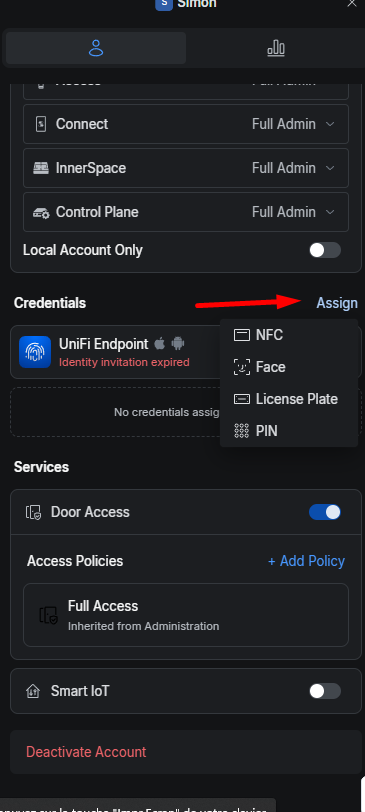
**Only if you want the user to have access with their phone
- Next to UniFi Endpoint, click Send to send an invitation to the user's email.
-
- The user will need to download the UniFi Endpoint app.
- They can then tap the button received in the email to activate their access.
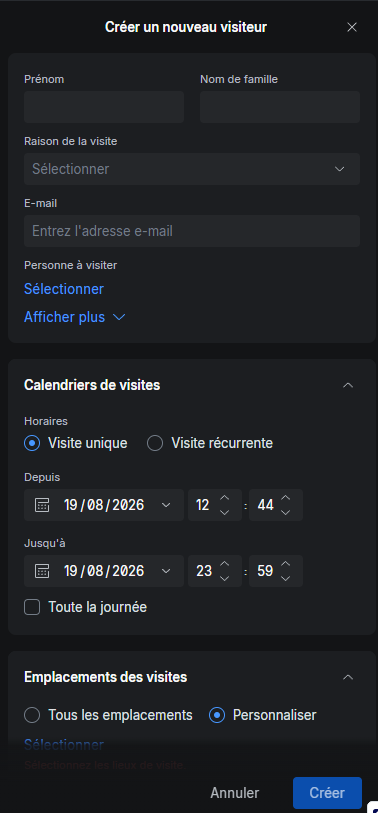
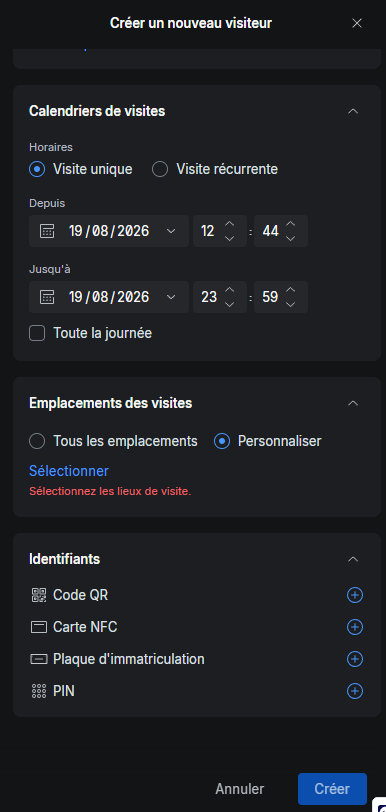
Adding a Visitor or Temporary Resident
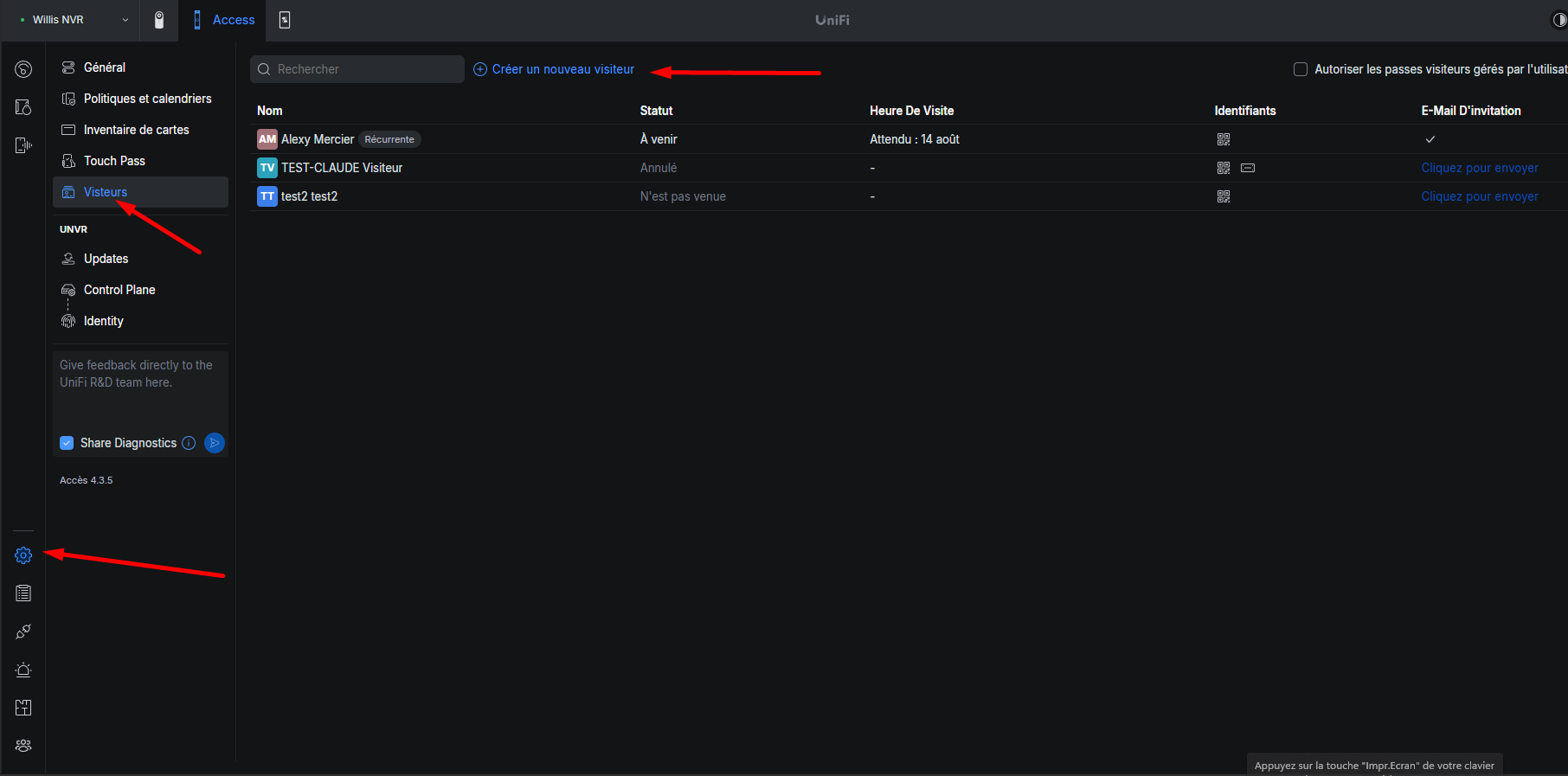
- Go to Settings → Visitors and click Create New Visitor.
- Add the desired information.
- Choose the validity dates for the access.
- Choose the doors the visitor can access.
- Choose the authentication method: PIN, QR code, etc.
No comments to display
No comments to display